
Virtual routing
Try routing your mic, music, game, and chat in the browser. You can build and save a routing plan without owning a GoXLR.
Try the routing matrixTry virtual routing in your browser without owning a mixer. Connect a physical GoXLR or GoXLR Mini to control live audio with GoXLR Utility.
No account required Compatible with existing profiles
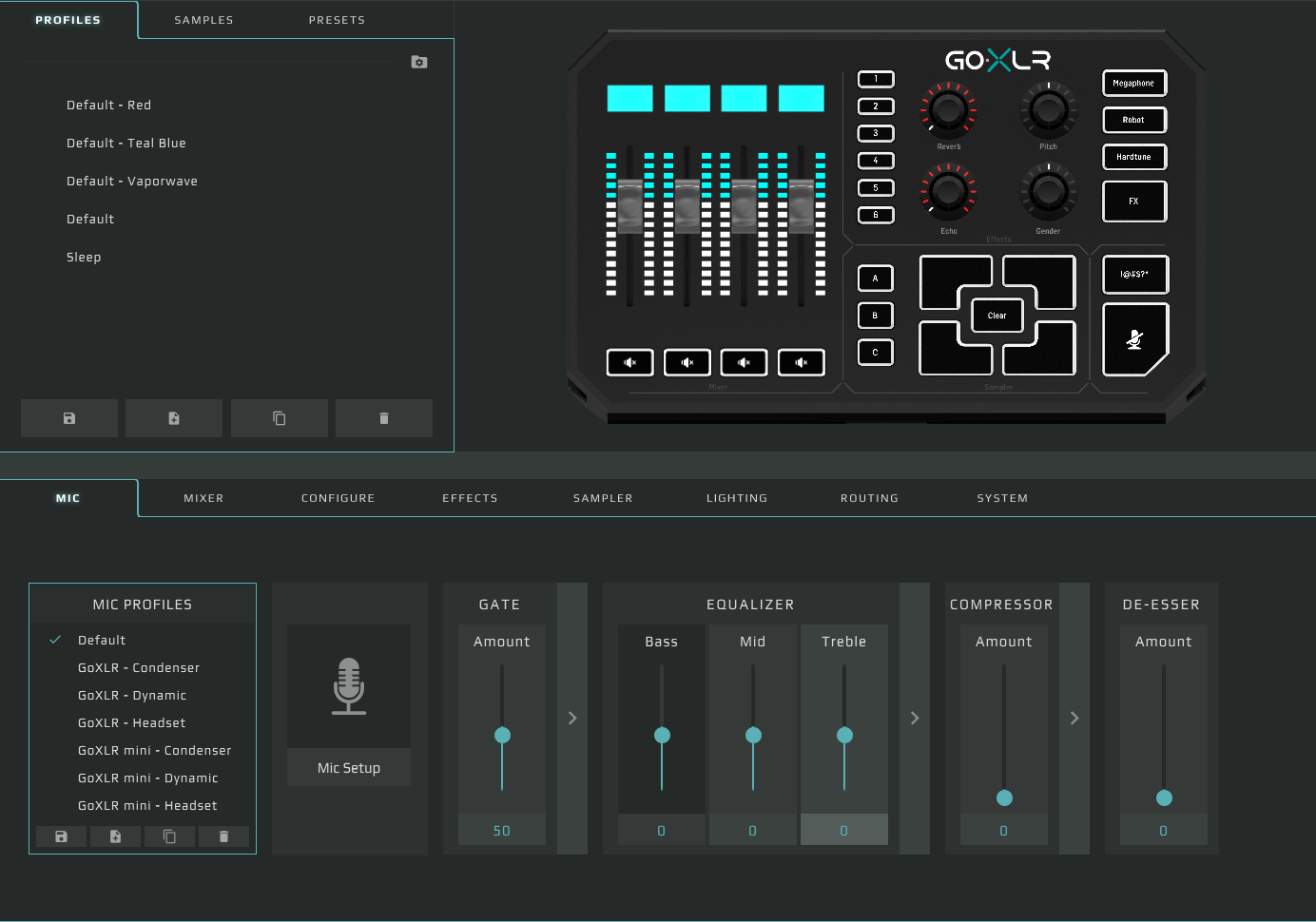
MICROPHONE SETUP
Choose your microphone to get streaming starting points for gain, gate, compressor, and EQ.
FEATURES
Set what you hear, what your stream hears, and what goes to chat.
Try routing your mic, music, game, and chat in the browser. You can build and save a routing plan without owning a GoXLR.
Try the routing matrixDial in gain, noise gate, compressor, and EQ for a consistent mic level. The available controls depend on your model.
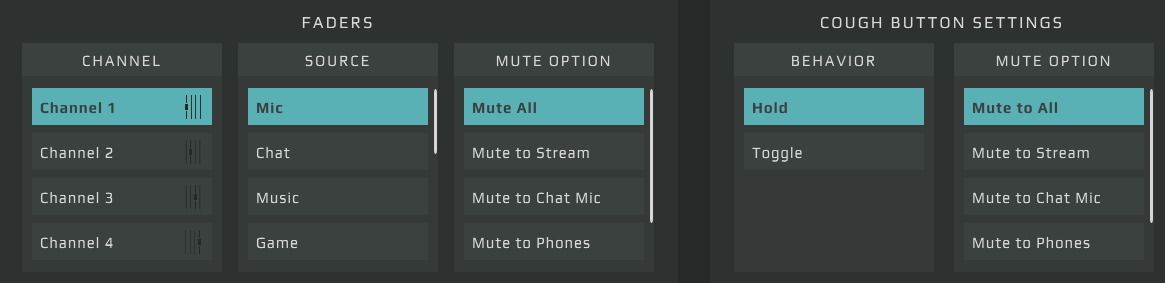
Set up your microphoneOn a connected GoXLR or GoXLR Mini, assign channels to physical faders, choose mute targets, and save the settings to a profile.
Set up your deviceMIXER
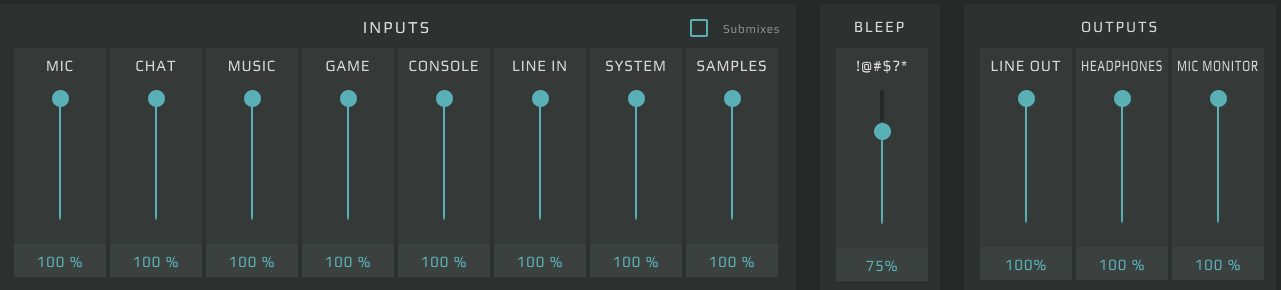
Set levels for your mic, chat, music, game, and other inputs. Adjust your monitoring outputs from the same screen.
Windows, Linux, macOS
Both GoXLR models
Connect and start mixing
SETUP
Start with the guide for your operating system or mixer.
FAQ
Try virtual routing in your browser without owning a mixer. Connect a physical GoXLR or GoXLR Mini to control live audio with GoXLR Utility.
Yes. Install the TC-Helicon driver first. Then quit the manufacturer’s app before opening GoXLR Utility so both apps aren’t trying to control the device.
Yes. In the Utility, open the folder from the Profiles pane, copy in your device profiles, then load the one you want. Use the Microphone Profiles pane for mic profiles.
Get the GoXLR Utility v1.2.4 ZIP.